Select Version of EA Desktop:
Exploration Archives uses the coverage defined in a cutout to calculate the fees and generate license documentation. The cutout tool provides a variety of features for making selections on a map and creating the cutout.
To prepare for creating a cutout, you must first add the seismic survey and/or the product files that the cutout will be derived from. The functionality for adding surveys and products is available in the Editor View. Opening the Editor View is part of the steps in creating a new license (refer to Creating a license). Alternatively, you can open the Editor View from an existing license.
 To open the Editor View from an existing license:
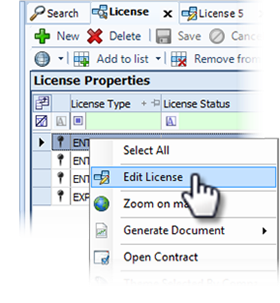
Locate the license in the License Properties grid of the License module. Right-click on the license to populate the context menu and click Edit License. The Editor View opens in a new tab and displays the license detail.
From the Editor View, the lower panel displays the Related Records information and allows you to add Seismic, the associated Products and the Cutouts.
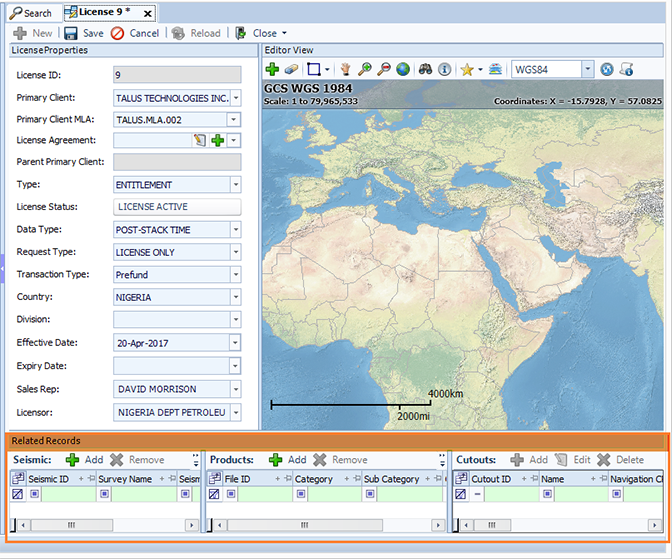
From the Editor View you can add a full survey or select particular products within a survey.
There may be a rare case when starting a new license that all the fields are not available. If this is the case, check the Map panel to make sure that the correct map format appears in the drop-down window. If it isn’t the correct format, use the drop-down to change the map to the correct one.
To add a survey:
-
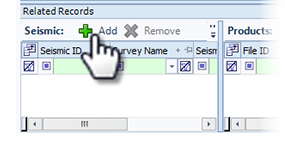
Click Add in the Seismic grid. The Add Surveys window opens as a working grid to search for the survey(s), and add to the license.
-
Click Add to list and select a search.
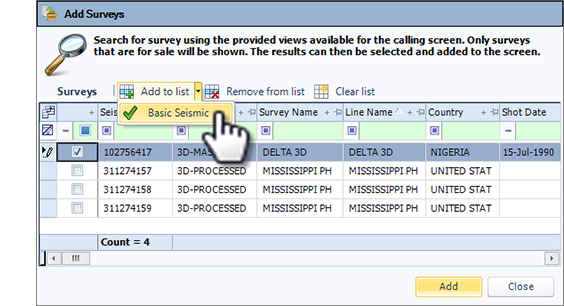
- Enter your search criteria then click Search. The results populate in the Surveys grid and displays the surveys available for sale.
- Select the checkboxes for the survey(s) you want to add to the license and click Add. The selected survey(s) add to the Related Records area of the license.
- Repeat these steps to add another survey, or click Close if you are done.
To add products:
-
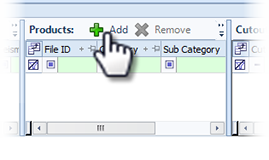
Click Add in the Products grid. The Add Products by Survey window opens as a working grid to search for the survey(s) and generate a list of associated products.
-
Click Add to list and select a search.
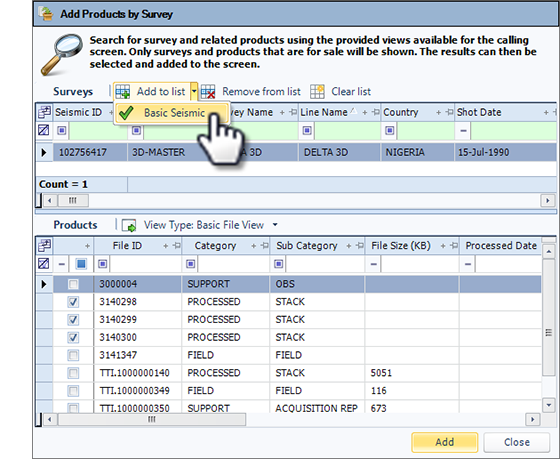
- In the search window, enter your search criteria and click Search. The results populate in the Surveys grid with the associated products available for sale in the Products grid.
- Select the check boxes for the product(s) you want to add to the license and click Add. The selected product(s) and associated survey adds to the Related Records area of the license.
- Repeat these steps to add another product, or click Close if you are done.